

Embedding is available to all Lightdash Cloud users and Enterprise On-Prem customers. Get in touch to have this feature enabled in your account.
Overview
Dashboard embedding displays a full Lightdash dashboard in your application — multiple visualizations, filters, tabs, and interactive features — so you can give users comprehensive analytics views without a Lightdash login. It’s the only surface you can embed with a plain iframe; everything else needs the React SDK.When to use dashboard embedding
- Executive dashboards: multiple KPIs and metrics in admin panels
- Customer-facing analytics: analytics portals for SaaS customers
- Embedded reporting: comprehensive data views inside your workflows
- Multi-chart views: related visualizations with shared filters
What you can put on an embedded dashboard
An embedded dashboard renders the same tiles it does in Lightdash: saved charts, SQL Runner charts, data app tiles, and markdown, Loom, and heading tiles, organized across multiple tabs.SQL Runner chart tiles are authorized through dashboard-tile membership, so they render with existing embed JWTs — you don’t need to regenerate tokens or change embed URLs. A SQL chart is only embeddable as part of a dashboard; a chart-scoped JWT (
type: 'chart') can’t embed one on its own.Set up a dashboard embed
Embedding always starts with the shared setup: create an embed secret, add your dashboard to the allowlist, preview it, and generate tokens from your backend. Follow the embedding quickstart for those steps. The only dashboard-specific part of setup is the allowlist: only dashboards added to the allowed dashboards list can be embedded. Add yours under Settings → Embed, or toggle Allow all dashboards to embed any dashboard in the project.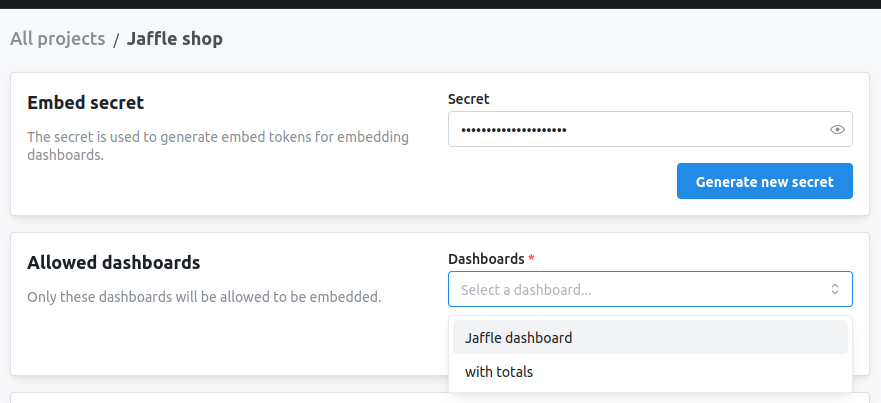
Configure what viewers can do
Everything a viewer can do on an embedded dashboard is controlled by fields nested inside the JWTcontent object: interactive dashboard filters (including letting viewers add their own), parameters, CSV/image/PDF exports, date zoom, “Explore from here”, viewing underlying data, and rendering data app tiles. Adding a writeActions claim also lets viewers save charts from Explore or edit and build dashboards through the SDK.
For the full list of options, their accepted values, and per-option UI screenshots, see the dashboard token and interactivity options in the embedding reference. A token that exercises the common ones looks like this:
Required filters behave the same as in the app. Embedded dashboards honor required filters and requirement groups: tiles stay locked and don’t load data while any rule is unmet, and viewers see the guided setup card. Style it with the
ld-dashboard-guided-setup class.Let viewers save and edit content
Add awriteActions claim to let embedded users save a new chart from Explore, or — through the React SDK — edit an existing dashboard or build a new one. Lightdash performs the write as a configured actor (a service account or user) into a fixed destination space. See Write actions for the claim and Lightdash.Dashboard edit mode for the SDK flow.
Newly saved charts aren’t added to the embed allowlist, so they won’t be re-embeddable unless you add them explicitly.
View data apps
Data app tiles run their own metric queries, so they only render when the JWT setscanViewDataApps: true. When it’s off (the default), the tile shows a placeholder and no queries run. When on, the data app inherits the embed’s user attributes and filters, so row-level access still applies — only enable it for audiences you trust with the data the app can query. For standalone data app embedding (no dashboard), see How to embed data apps.
Embed with an iframe
iframe embedding needs no libraries or CORS. Pass the project UUID in the path and the JWT in the hash fragment; the dashboard is identified bycontent.dashboardUuid inside the token, not the URL:
theme, backgroundColor, and timezone), responsive and dynamic sizing, token refresh, and troubleshooting.
Embed with the React SDK
The React SDK renders the dashboard as a component and adds programmatic filters, callbacks, custom styling, and edit mode.Next steps
Embedding reference
Complete JWT structure and every interactivity option
iframe embedding reference
URL patterns, theming, sizing, and token refresh
React SDK reference
Props, programmatic filters, styling, and edit mode
User attributes & row-level security
Show different data to different users