YAML validation
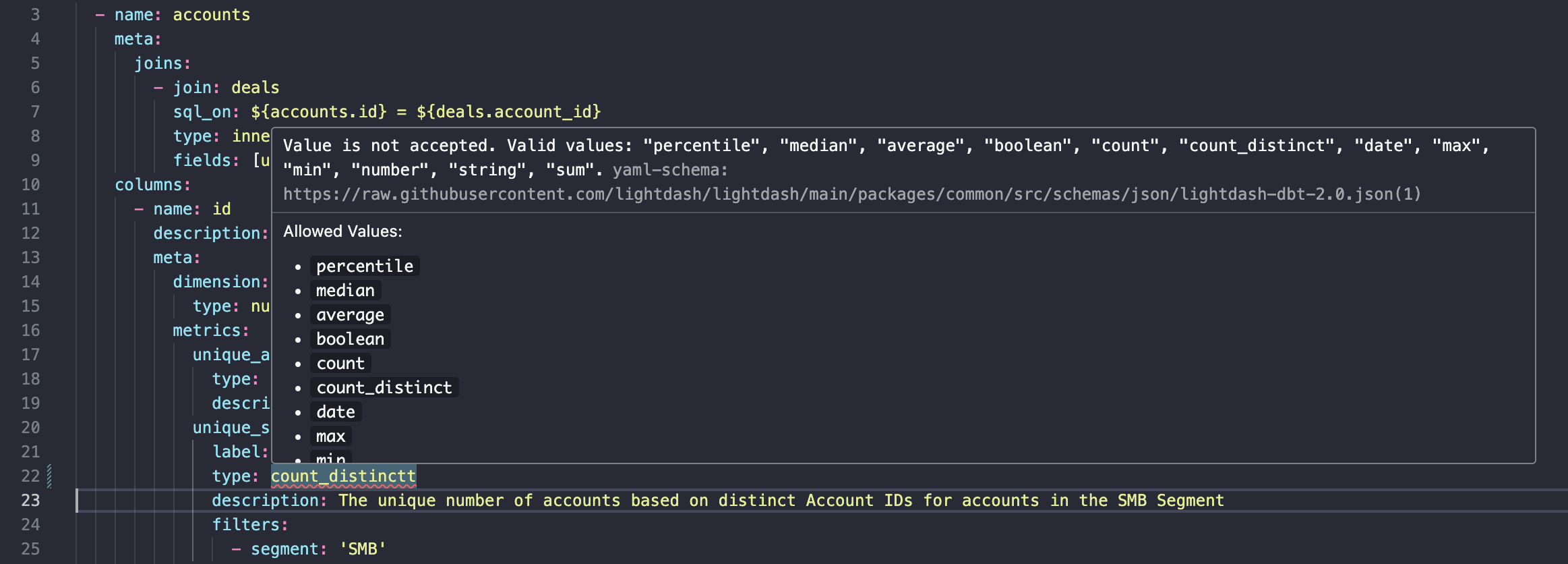
If you edit your Lightdash YAML in VS Code — dbt model schema files, or charts and dashboards managed as content as code — set up schema validation so formatting and configuration issues are flagged before you compile or upload. You get autocomplete for supported properties and inline errors for invalid ones, using the same logic Lightdash applies when compiling your project.1
Install the YAML extension
Install the YAML extension for VS Code.
2
Map the Lightdash schemas in settings.json
Add the schemas to your
settings.json file. Read this guide for details on how to edit settings.json.settings.json
Adjust the chart and dashboard globs to match where you write content as code. The defaults above assume
lightdash download wrote to lightdash/charts/ and lightdash/dashboards/.schema.yml files.