

lightdash validate to your GitHub Actions so changes can’t be merged unless they pass the validation. For what the validator checks and every way it runs, see Validating your content.
Usage
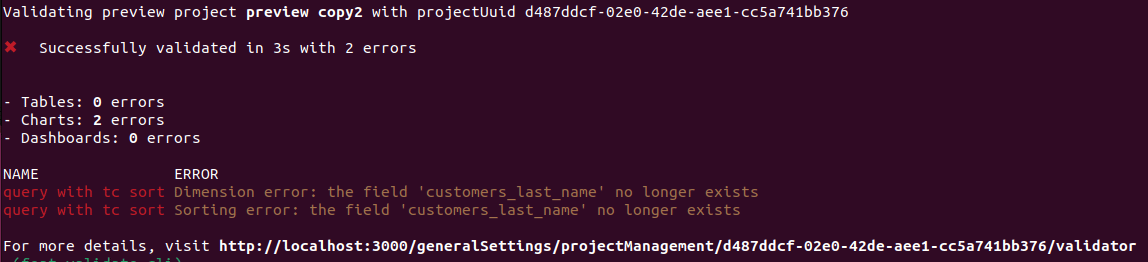
Validate your changes against your project by running lightdash validate
You can runlightdash validate to check if your changes break any of the content in production. By default, lightdash validate will check your changes against the content in the project you’ve selected on the CLI. You can change your project using lightdash config set-project.
--preview argument to validate your last preview environment created from the CLI.
You will get a list of errors if your local files are going to break some content on your project. These errors will not be reflected on the validation table on Lightdash settings.
Validate any project using the project UUID
You can run a validation on any project by specifying the project UUID in thelightdash validate command.
projects/
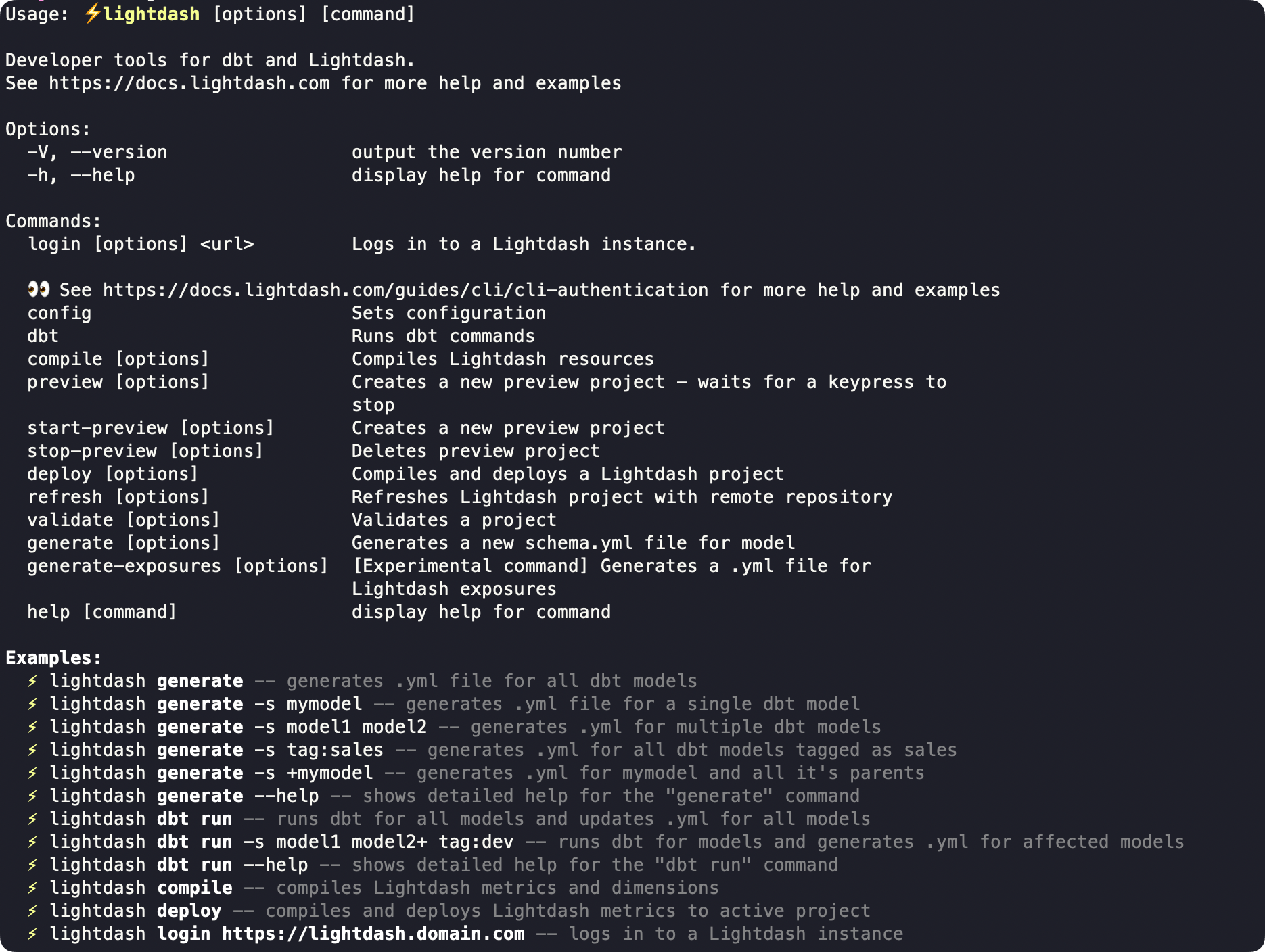
Validate only specific elements of your project
You can select which parts of your project you would like to validate using the--only argument.
-
tables -
charts -
dashboards
Use strict compilation
Lightdash uses partial compilation by default. Field, join, and set-validation failures that can be isolated are reported as warnings so the rest of the explore stays usable; failures that cannot be isolated can still produce errors. Add--no-partial-compilation to report the failures that partial compilation would otherwise isolate as errors instead. It doesn’t promote unrelated, non-blocking warnings — other generic compilation warnings stay non-blocking.
If your project uses physical column references such as ${TABLE}.order_id, add --validate-warehouse-columns to check supported unquoted references with warehouse queries that return no rows. It’s opt-in because it sends those queries; whether your warehouse scans or bills for them is warehouse-dependent, and the check needs warehouse credentials and the warehouse catalog. Warehouse-column errors are reported whether partial compilation is on or off.
See the CLI compilation options for the supported reference syntax and every skip condition.
Combine both flags for the strictest check:
lightdash validate includes tables by default, so the warehouse-column check runs without extra options and table model errors make the command exit non-zero. If you customize --only, keep tables in the list to run the warehouse check; use --only tables to validate tables without charts or dashboards.
The check requires warehouse credentials and the warehouse catalog, and is skipped for dbt Cloud CLI and Lightdash YAML-only compilation. See the CLI reference for supported reference syntax and all skip conditions.
Configure Github actions
This command will create a preview environment, and then validate this preview by specifying--preview on the validate command.lightdash validate will return an error (return code 1) if there is at least 1 validation error on your project. You can use this output to block a deploy on Github actions like this