

tl;dr: store timestamps as timezone-aware types, use
DATE for calendar values, and set your project timezone to the zone you report in.Timezone conversion
Lightdash converts the timezones of your data from their source timezone to a report timezone:- Source timezone is the timezone of the raw data. It is defined in your warehouse, data types, modelling, and connection settings.
- Report timezone is the timezone you want to see in your results. It is defined by the project/user preferences, and specific chart/dashboard configuration.
Pick the right column types in your warehouse
Store your event timestamps as timezone-aware types. They unambiguously identify a moment in time and require no extra configuration. If you choose a naive timestamp it’s timezone will be assumed to be in UTC unless you have configured the default data timezone.Use DATE only for calendar values
If a column represents a calendar date rather than a moment in time, store it as DATE. Lightdash treats DATE columns as fixed calendar dates and never shifts them: 2024-03-15 stays 2024-03-15 regardless of the project timezone.
Use DATE for values like:
- A user’s date of birth
- A subscription start date
- An anniversary
- A fiscal-period boundary
DATE is not what you want for event timestamps.
Don’t store dates as strings. A value like '2024-03-15' in a VARCHAR column is opaque to both the warehouse and Lightdash: sorting and range filters break, and every operation needs a cast. Convert string dates to a proper DATE or TIMESTAMP type in your dbt model.
Configure your connection
For timestamps without timezones (naive timestamps), we assume they follow the default data timezone. You can configure this in your warehouse connection settings: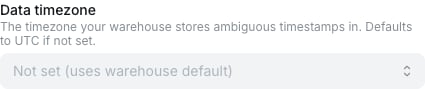
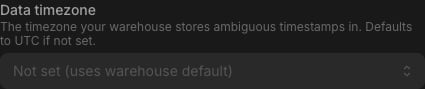
- If all your naive timestamps are in UTC (very common, since most ELT pipelines normalize to UTC): leave it as UTC.
- If your naive timestamps are in a single non-UTC zone (e.g. an on-prem system that logs in local time): set the data timezone to that zone. Lightdash will interpret naive values as being in that zone.
- If your naive timestamps have a mix of timezones - we currently don’t support overriding the timezone on a per-column level. Reach out to the team if you have a use case. If it’s an option, consider re-modelling your data in a timezone-aware type.
Configure your project timezone
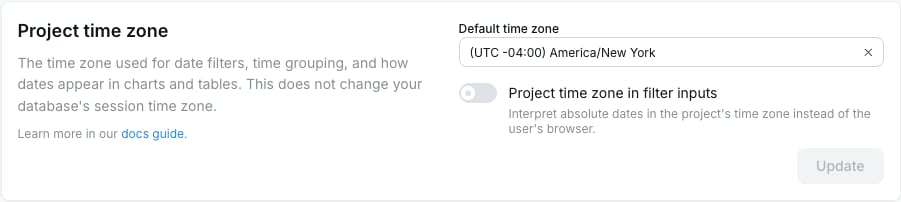
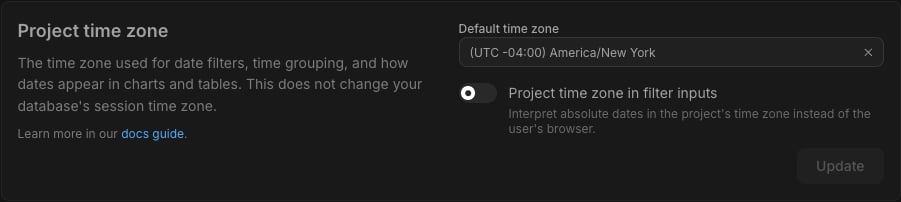
In Project settings → Timezone, pick the zone you want reports to use. Lightdash will convert all reports from the raw data timezone into the project timezone. This is the zone in which:- Timestamps are displayed in tables, on chart axes, and in exports.
- “Today” and “yesterday” are computed in relative date filters.
- Data is bucketed in a per-day grouped bar chart.
Opt a column out of timezone conversion
Most columns don’t need annotations. The main exception is system or audit columns where you want the raw stored value displayed, with no shift to the project timezone:- dbt v1.9 and earlier
- dbt v1.10+ and Fusion
- Lightdash YAML
DATE columns need no annotation. If you declare a column as type: date, Lightdash treats it as a calendar value with no timezone applied, and renders it as-is.
Override a column timestamp domain
Lightdash reads whether a timestamp column is timezone-aware or naive from your warehouse catalog, so you don’t usually need to set this. Override it when the warehouse type doesn’t match how the data is stored, for example aTIMESTAMP_NTZ column that already holds UTC instants.
Set timestamp_domain to aware or naive:
- dbt v1.9 and earlier
- dbt v1.10+ and Fusion
- Lightdash YAML
sql and on additional dimensions, since the expression may change the domain. Interval children (_day, _month, …) inherit from their base.
Naming conventions
Lightdash doesn’t enforce naming, but consistent suffixes make a model easier to read:..._atfor timezone-aware timestamps (e.g.,created_at,purchased_at)...._datefor calendarDATEcolumns (e.g.,signup_date,effective_date)...._at_utcfor columns you’ve explicitly markedconvert_timezone: false.
Calendar dates vs timestamps: what shifts
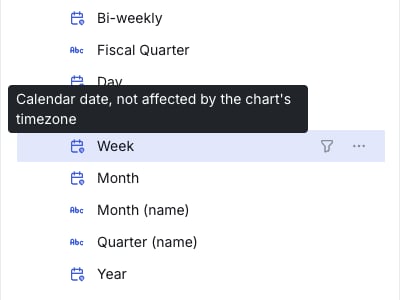
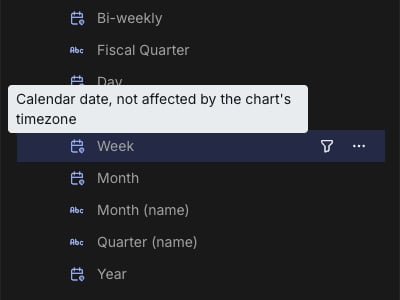
Whether a column moves with the chart’s timezone depends on its type, not its name:TIMESTAMPcolumns identify a moment in time, so they shift into the resolved timezone.DATEcolumns are calendar values with no clock, so they never shift.2024-03-15stays2024-03-15for every viewer.
Verify your setup
Before building dashboards, run a quick smoke test:- Open Explore on a model with a known timestamp column.
- Group by that dimension at Day granularity.
- Compare a few rows against the raw warehouse data.